


AI Photo - Image Generator
4.315.00 Reviews
App Specs
- Version
- 1.1.3
- Updated On
- License
- Free
- Downloads
- 1,000,000+
- Developer
- MLC Development
- Categories
- Art & Design
- Platform
- Android
Screenshots
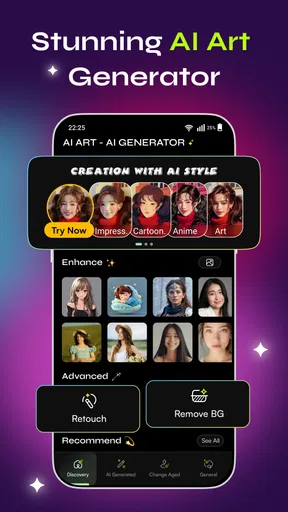
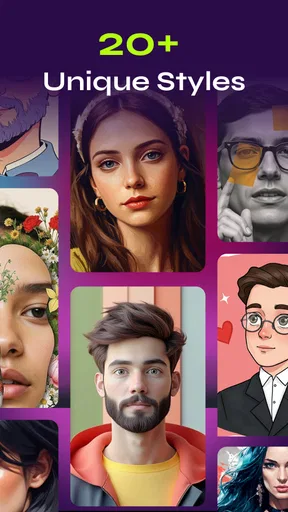
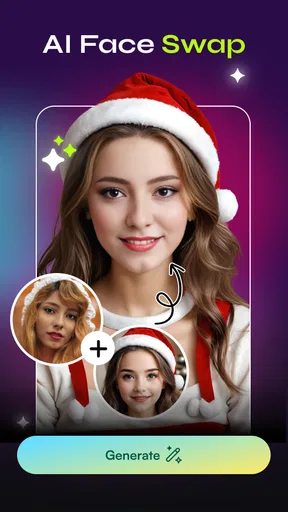
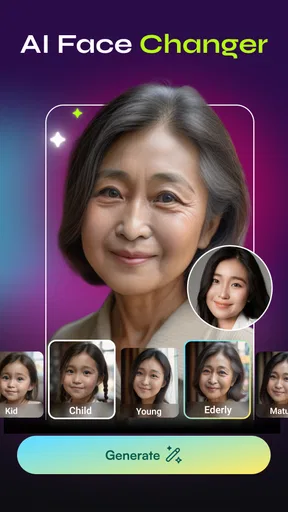
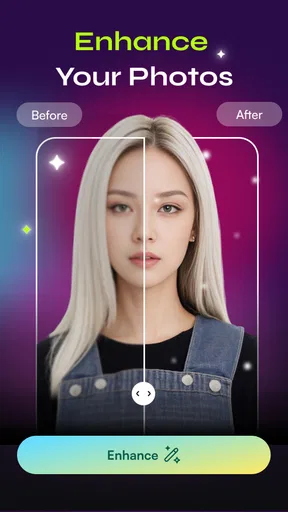
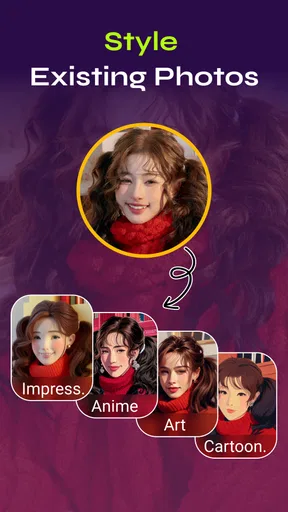
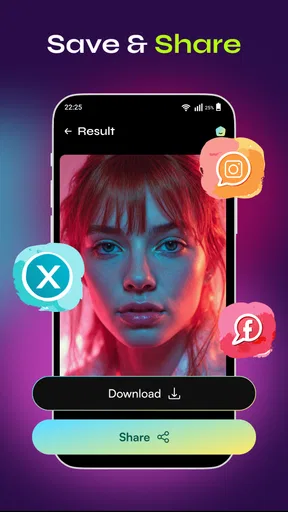
 Analysis by AppCompare
I approach AI art generators with a practical question: can I turn a clear idea into an image without spending more time wrestling with the app than shaping the idea? AI Photo - Image Generator is aimed at that quick, prompt-led kind of creation. It belongs to the art and design category, and its appeal is straightforward: describe what you want, let AI do the visual work, then decide whether the result is useful enough to keep or share.
My take is that AI Photo - Image Generator is best treated as a sketching partner, not a replacement for a full design studio. It can help when you need a visual starting point, a mood-board image, or a playful interpretation of an idea. It is less suitable when a project depends on precise typography, exact product details, or a carefully controlled, repeatable visual identity.
A practical fit for low-stakes creative work
I would reach for this app when I need to make an idea visible quickly, not when I need a guaranteed final asset. For example, someone planning a small birthday gathering could try a few visual directions for an invitation background, then use the best one as a reference while arranging the date and details in a separate editor. That keeps the generated art in a role it handles well: helping with atmosphere, rather than carrying information that must be exact.
It may also suit a student trying to choose between several presentation themes, or a hobbyist who wants a personal image inspired by a favorite setting. In both cases, the useful outcome might be a clearer sense of color and mood rather than a perfect picture. If the task involves a real person’s likeness, a product that must match its actual appearance, or a design that needs precise revisions, I would choose a more controllable route from the start.
From a rough idea to a usable image
I find the useful shift happens when I stop treating each prompt as a one-off and start using it to answer a specific visual question: which mood, setting, or focal point fits the job? That makes the first result easier to assess and keeps experimentation purposeful. In the next section, I look at how to turn that simple starting point into a repeatable workflow without assuming controls the app may not offer.
Start with a concrete prompt
The most useful habit with a prompt-based art app is to decide what the image needs to communicate before typing. Instead of entering a broad request such as “a nice landscape,” I would describe a subject, a setting, and the feeling I want: a quiet lakeside at dawn, mist over the water, muted colors. That gives the generator a more actionable direction and makes it easier to judge the result.
AI Photo’s focus is creating images from written ideas, so it makes sense to work in small steps. I would begin with the main subject, then add a few details that matter most. If the first image is close but not right, change one part of the description at a time. Rewriting the entire prompt after every attempt makes it hard to tell which change helped.
Worth Reading Before You Choose

Flipboard Shows What News Apps Must Do Beyond the Feed

Switching to Android Auto Means Rethinking Your Driving Routine

Google Calendar Makes a Crowded Week Easier to Manage

Ludo King Makes the Most of the Minutes Between Plans

Baby Panda World Brings Quick Play to Modern Phones, but Its Game Library Feels Busy

ESPN’s Live Game View Makes Following Close Games Easier
This approach is useful for everyday jobs that do not need a finished commercial asset. If I were putting together a casual invitation, for example, I could use the app to explore a color mood or an illustrated background before choosing a final layout elsewhere. The generated image can provide direction even when it is not ready to serve as the finished design.
Keep the goal narrower than the imagination
A common temptation is to pack a prompt with every detail in mind: several subjects, a specific pose, a complex setting, lighting instructions, and a long list of stylistic references. That can make the request harder to evaluate. I find it more practical to prioritize the two or three elements that must survive into the image, then treat the rest as optional flavor.
For instance, if I need a friendly profile illustration, I would focus first on the person’s general appearance and the desired mood. I would avoid asking for tiny details that are not important at thumbnail size. This is a useful trade-off: fewer demands can produce a more coherent overall image, while a highly specific brief may require patience and several attempts.
The app is free and developed by MLC Development. It has a 4.3 average from around 9,500 ratings, and more than a million installs. Those figures suggest that it has found an audience, but they do not tell me whether a particular generated image will match my taste. The best test is still to try a prompt based on a real task you have in mind.
Check what matters before relying on it
AI art tools can differ in how much control they offer over style, layout, and output. I would inspect the choices available in the app before building a workflow around assumptions. If it presents style or image options, choose them deliberately; if it does not provide the precise control you need, keep the app’s role limited to exploration rather than trying to force it into a production tool.
That distinction matters when an image has to fit a particular space. A square social post, a phone wallpaper, and a banner all call for different compositions. Before investing time in a prompt, consider where the result will go and whether the generated framing will work there. If the app does not give you the composition you need, you may be better off generating a flexible concept and cropping or laying it out in a separate editor.
I would also treat every result as a draft until I have checked it at the size where it will be used. A picture that looks appealing in a small preview can reveal awkward details when enlarged, while a busy image may become more effective as a tiny thumbnail. This quick check helps avoid spending time polishing an image that does not fit its real purpose.
Build a repeatable routine, not a complicated ritual
Experienced users often get more consistent results from habits than from secret tricks. I would keep a short note of prompts that worked, especially the wording that established the subject and mood. For a recurring project, reusing that core description and changing just one element makes comparisons more meaningful and helps maintain a recognizable direction.
A simple prompt routine can also save time: write the subject, add the setting, state the mood, then remove any detail that is not essential. After generating an image, identify the biggest mismatch. Is the subject wrong, is the scene too busy, or is the color tone off? Adjust only that part on the next attempt. This is more controlled than adding a string of extra adjectives and hoping the generator interprets them as intended.
For a low-stakes everyday scenario, imagine choosing artwork for a personal reading playlist. I might start with the atmosphere—warm, calm, and slightly nostalgic—then add a visual subject such as a desk beside a rainy window. If the result feels too dark, I would change the lighting description rather than replacing the entire concept. Once I have a direction I like, I can use it as inspiration for a more carefully assembled cover in a design editor.
Small workflow choices that save rework
One useful habit is to decide on the destination before generating. If I want an image for a narrow phone screen, I would describe a central subject with some breathing room around it, rather than a scene whose important details run along every edge. That does not guarantee a particular crop, but it gives me a better chance of keeping the focal point when I adapt the picture later.
I would also separate exploration from selection. During the first pass, I am asking whether the concept has promise; during the next, I am checking whether one result can serve the intended purpose. Mixing those questions can lead to endless prompt tweaking. If none of the results communicates the idea clearly, I would change the concept or move to a different tool instead of treating persistence as a substitute for control.
Where quick generation reaches its limits
The main limitation of AI-generated imagery is the gap between a convincing impression and exact execution. A picture can capture the broad idea yet miss small structural details. That is usually fine for brainstorming or personal artwork, but it becomes a problem when a client, shop listing, or brand guide requires accurate objects, consistent characters, or legible text.
Text inside generated artwork deserves special caution. If your design depends on a correctly spelled title, slogan, or label, I would not rely on the image generator to handle that final lettering. Create or refine the image first, then add the words in a conventional graphics app where you can control spelling, font, alignment, and spacing. This two-step workflow is often more dependable than asking one AI image to do everything.
Consistency across a set is another point to consider. A single image can be appealing without matching the next one in palette, subject details, or composition. If you need a series for a campaign or a product catalog, a tool with stronger art-direction controls—or a human designer—may be the better choice. AI Photo is more naturally suited to trying ideas than guaranteeing a uniform collection.
There is also a practical difference between inspiration and ownership of the final craft. A generated image may need cropping, retouching, text, or other adjustments before it feels finished. I would leave time for that second stage instead of assuming that generation alone completes the job. People who want precise editing controls in one place may prefer a full-featured image editor; people who want a quick visual starting point may find this app more convenient.
How it compares with familiar creative tools
Compared with drawing from a blank canvas, a prompt-led generator can get me to a visual direction faster, especially when I know the mood but do not have the drawing skills to express it. Compared with a conventional design editor, though, it gives me less dependable control over the exact placement and finish of every element. Those tools solve different problems, so I would not treat one as a complete substitute for the other.
A stock-image library is a better choice when I need a realistic, specific subject and predictable framing, provided I can find an image that fits. A photo editor is the more sensible option when I already have a photograph and want to correct or retouch it. This app makes the most sense between those cases: I have a concept, I want an original visual interpretation, and I am comfortable refining the result elsewhere if it is only a starting point.
Who will get the most from it
I can see AI Photo fitting casual creators, students exploring visual concepts, and anyone who wants to turn a description into an image without starting from a blank canvas. It is especially useful when the goal is to compare moods or spark an idea, rather than deliver a technically exact asset. The app is free, and its Everyone content rating makes it approachable for a broad audience, though younger users should still follow their household’s usual guidance for using creative apps.
On the other hand, I would skip it as a primary tool if your work depends on editable layers, exact dimensions, reliable typography, or strict brand consistency. A traditional design app offers more predictable control over those details. If your main need is retouching a photograph you already have, a photo editor is also a better match than a generator that begins with a text idea.
The app’s current version is 1.1.3, and it supports Android 7.0 or later. That makes it worth checking against your device before installing. It was released on January 8, 2026, so its place in the category is still relatively new; I would judge it by whether its current workflow suits your needs rather than assuming it has the depth of a long-established professional suite.
A sensible way to decide
My recommendation is to try AI Photo - Image Generator with one small, real task instead of a vague test prompt. Choose something you actually want to visualize, keep the description focused, and decide in advance what would count as a useful result. If the image gives you a direction you can build on, the app has done its job even if you finish the design elsewhere.
For me, its strongest role is fast visual exploration: getting from an idea in my head to something I can react to. The weak point is the expectation that a generated picture will automatically be polished, precise, and ready for every use. Use it as a starting point, check the result at its intended size, and switch to a more controlled editor when exact details matter. That is the difference between a fun experiment and a workflow that genuinely saves time.
Pros
- Simple interface makes it easy to create images from text prompts.
- Generates original artwork without requiring drawing skills.
- Useful for exploring different visual ideas quickly.
- Offers a convenient way to make images for social posts and projects.
- Results can inspire new prompts and creative directions.
Cons
- Generated images may not match the prompt precisely.
- Fine details
- hands
- and text can appear distorted.
- Creating polished results may require several attempts.
- Image quality and available styles may vary by subscription tier.
- AI-generated visuals may not be suitable for professional use without editing.
FAQs for AI Photo - Image Generator
What is AI Photo - Image Generator, and what can it do?
AI Photo - Image Generator is an app designed to create or transform images using artificial intelligence. Depending on the tools available in your version, you may be able to generate artwork from a written prompt, restyle an existing photo, or try creative effects and image-editing features. Results can vary with the prompt, source image, and selected settings, so it is best to treat generated pictures as creative starting points rather than guaranteed exact results.
Is AI Photo - Image Generator free to download and use?
The app may be free to install, but some features can require a subscription, a one-time purchase, credits, or watching advertisements. Check the app-store listing and the purchase screen for current pricing, trial terms, and renewal details before confirming anything. If a free allowance is offered, its limits may apply to generations, exports, or available tools, and can change over time.
Do I need an internet connection to generate images?
AI image generation commonly relies on online processing, so an internet connection may be required to submit prompts, upload photos, or receive finished results. Some basic editing or viewing functions might work offline, but availability depends on the app version and the specific feature. If you plan to use it while travelling, check whether generation works on mobile data and consider any data charges.
What happens to the photos and prompts I upload?
Before uploading personal photos or entering sensitive details in a prompt, review the app’s privacy policy and permissions. These explain what information may be collected, how images are processed, whether content is retained, and whether it may be shared with service providers. Avoid uploading private images or identifying information unless you are comfortable with the stated practices, and use the app’s deletion controls if available.
Can I use images made with AI Photo - Image Generator commercially?
Commercial-use rights depend on the app’s current terms, the image-generation service it uses, and any rights associated with source photos, prompts, or included assets. Do not assume that every generated image is cleared for advertising, resale, or other business use. Review the licence and usage rules in the app and store listing, and check applicable laws before publishing or selling an image.


